
How To | Guides | 2026
How to Reduce Laptop Heating While Gaming: 10 Proven Steps (2026)
How to reduce laptop heating while gaming is one of the most searched questions among Indian gamers in 2026. Gaming laptops pack powerful CPUs and GPUs into compact chassis, which naturally leads to heat buildup during intense sessions. Excessive heat not only makes your keyboard uncomfortably warm but also triggers thermal throttling, causing sudden FPS drops and stuttering.
In this guide, you will learn proven methods to keep your gaming laptop cool — from simple positioning tweaks to advanced software optimizations. Whether you own an entry-level gaming laptop or a high-end machine, these steps will help you maintain stable performance and extend your hardware’s lifespan.

What You Will Need
Before you start, gather these items to make the process smoother:
- A can of compressed air (for cleaning vents and fans)
- A soft microfiber cloth
- A laptop cooling pad or stand (optional but highly recommended)
- Temperature monitoring software — HWiNFO64, MSI Afterburner, or Core Temp
- Small Phillips head screwdriver (for opening the back panel, if comfortable)
- High-quality thermal paste (if repasting — Arctic MX-4 or Thermal Grizzly Hydronaut recommended)
Step-by-Step Guide
Step 1: Position Your Laptop on a Hard, Flat Surface
Always place your gaming laptop on a hard, flat surface like a wooden desk or table. Soft surfaces such as beds, sofas, or carpets block the bottom intake vents and trap heat underneath. If you must game on a bed, use a hard laptop tray or a thick book underneath to maintain airflow. Elevating the rear of the laptop by 2-3 inches using rubber feet or a stand can improve bottom ventilation by 30-40% and reduce temperatures by 5-8°C.
Step 2: Clean Dust from Vents and Fans
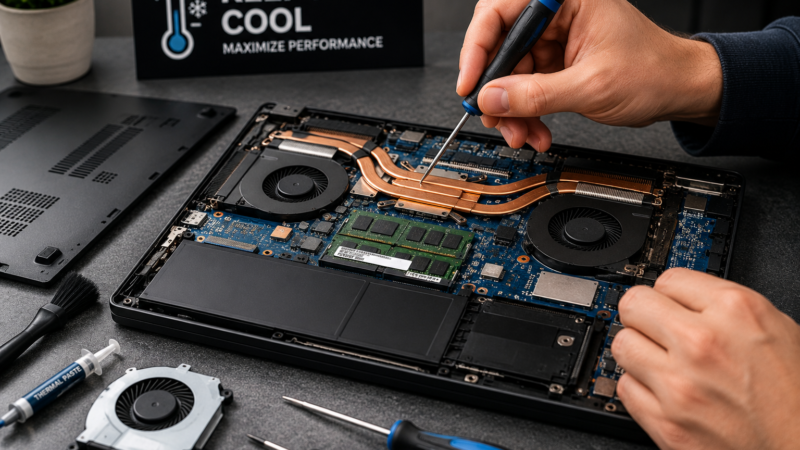
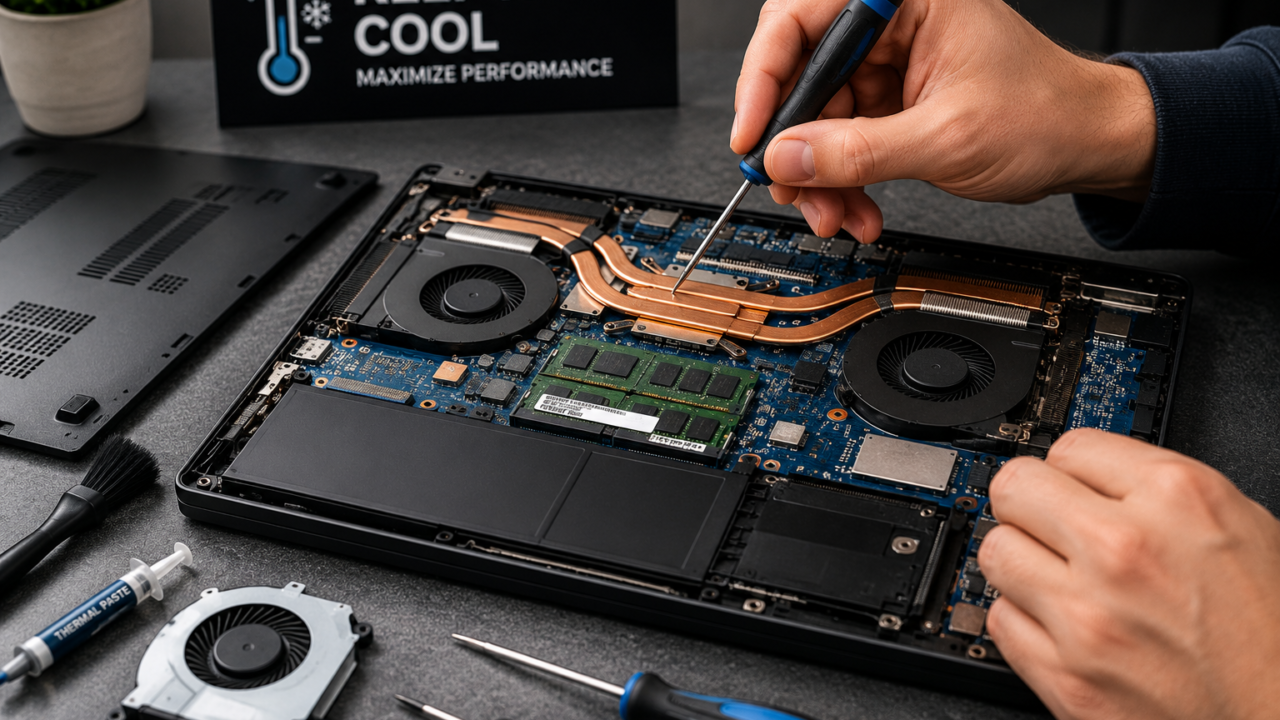
Dust accumulation is the number one cause of overheating in gaming laptops. Over time, dust clogs the cooling fans and heat sinks, reducing airflow efficiency. Power off your laptop completely and unplug it. Use a can of compressed air to blow out dust from the exhaust vents. Hold the can upright and use short bursts to avoid moisture buildup. For deeper cleaning, remove the bottom panel (check your laptop manual) and gently clean the fan blades with a soft brush. Repeat this every 3-6 months depending on your environment.
⚠️ Important: Never use a vacuum cleaner directly on your laptop. Static electricity from vacuums can damage sensitive internal components. Always use compressed air or an anti-static brush.
Step 3: Use a Quality Cooling Pad
A laptop cooling pad with built-in fans is one of the most effective external solutions for reducing temperatures. Look for a pad with 4-6 fans and adjustable height settings. Sealed-chamber cooling pads that create an airtight seal around your laptop’s bottom intake vents are 2-3x more effective than open-mesh alternatives. In 2026, mid-tier cooling pads priced between ₹800-₹1,200 offer the best value for Indian gamers. Place the cooling pad on a flat surface, align the fans with your laptop’s intake vents, and connect it via USB.
💡 Tip: If you don’t have a cooling pad, simply elevating the rear of your laptop with a book or stand can improve airflow significantly. This is often as effective as basic cooling pads for temperature reduction.
Step 4: Close Unnecessary Background Applications
Running multiple programs in the background consumes CPU and RAM resources, generating extra heat and reducing gaming performance. Press Ctrl + Shift + Esc to open Task Manager. Go to the Processes tab and identify applications using high CPU or memory. Close browsers with multiple tabs, streaming software, Discord (if not needed), and any system updaters. Also disable unnecessary startup programs by going to the Startup tab in Task Manager and turning off apps you don’t need at boot.
Step 5: Optimize In-Game Graphics Settings
Running games at Ultra settings pushes your GPU to its maximum power limit, generating excessive heat. Lower the graphics preset from Ultra to High or Medium — the visual difference is often minimal, but the temperature reduction is significant. Specifically, reduce shadow quality, disable ray tracing (extremely demanding), lower anti-aliasing, and cap your frame rate to your display’s refresh rate (e.g., 60 FPS or 120 FPS). If your laptop supports DLSS 3 or FSR, enable these technologies — they improve frame rates while reducing GPU load and heat output.
Step 6: Adjust Power and Fan Settings
Most gaming laptops come with manufacturer software for performance control. ASUS users have Armoury Crate, Lenovo has Vantage, HP has OMEN Gaming Hub, and MSI has Dragon Center. Switch from “Performance” or “Turbo” mode to “Balanced” or “Silent” mode when temperatures are high. This typically reduces CPU/GPU power limits by 10-15W, lowering heat without major performance loss. Set custom fan curves to run fans at higher RPMs during gaming. In Windows, go to Settings > System > Power & Battery and select “Balanced” power mode instead of “Best Performance.”
Step 7: Monitor Temperatures Regularly
Install HWiNFO64 or MSI Afterburner to monitor real-time CPU and GPU temperatures while gaming. Ideal gaming temperatures are 70-85°C for the CPU and 65-80°C for the GPU. If your CPU consistently hits 95°C or above, your cooling system is struggling. Use the data to identify which games or settings cause the highest temperatures, then adjust accordingly. Monitoring also helps you spot failing fans or degraded thermal paste before they cause permanent damage.
Step 8: Keep Your Room Cool
Ambient temperature plays a huge role in laptop cooling. In Indian summers, room temperatures can easily exceed 35°C, making it nearly impossible for your laptop to stay cool. Use an air conditioner or ceiling fan to keep your gaming area below 28°C. Avoid direct sunlight on your laptop. If you don’t have AC, place a small table fan near your laptop to improve air circulation around the chassis. Every 5°C reduction in ambient temperature can lower internal laptop temperatures by 3-5°C.
Step 9: Update Graphics Drivers and BIOS
Outdated drivers can cause inefficient power management, leading to unnecessary heat generation. Update your NVIDIA or AMD graphics drivers to the latest 2026 version via GeForce Experience or AMD Adrenalin Software. Also check for BIOS updates from your laptop manufacturer — these often include thermal management improvements and fan curve optimizations. Windows Update should also be kept current, as Microsoft frequently releases power efficiency patches.
Step 10: Repaste Thermal Compound (Advanced)
If your laptop is 2+ years old and still overheating despite all other steps, the thermal paste between the CPU/GPU and heat sink may have dried out. This is an advanced step — only attempt if you are comfortable opening your laptop. Remove the bottom panel, unscrew the heat sink assembly, clean the old paste with isopropyl alcohol, and apply a pea-sized amount of high-quality thermal paste (Arctic MX-4 or Thermal Grizzly Hydronaut). Reassemble carefully. This can reduce temperatures by 10-15°C on older laptops. If unsure, take it to an authorized service center.
⚠️ Important: Opening your laptop may void the warranty. Check your warranty terms before disassembling. If your laptop is under warranty, visit an authorized service center for thermal paste replacement.
Common Mistakes to Avoid
⚠️ Important: Never game with your laptop on your lap or on a pillow. This completely blocks ventilation and can cause temperatures to spike within minutes, leading to automatic shutdowns.
⚠️ Important: Avoid using third-party “laptop cooler” apps that claim to boost fan speed beyond manufacturer limits. These can damage your fans and void your warranty.
⚠️ Important: Do not ignore thermal throttling symptoms. If your FPS suddenly drops after 15-20 minutes of gaming, your laptop is throttling. Continuing to game at high temperatures can permanently degrade battery health and reduce CPU lifespan.
Tips & Tricks
💡 Tip: Enable NVIDIA WhisperMode or AMD SmartShift in your graphics settings. These AI-driven features automatically balance performance and power consumption, reducing heat without manual tweaking.
💡 Tip: Cap your in-game FPS to your monitor’s refresh rate. Running a 60Hz display at 200 FPS wastes GPU power and generates unnecessary heat. Use V-Sync or frame rate limiters in game settings.
💡 Tip: Undervolting your CPU using ThrottleStop or Intel XTU can reduce temperatures by 5-10°C with zero performance loss. This is safe when done correctly — reduce voltage in small increments (e.g., -50mV) and test stability.
💡 Tip: Take a 10-15 minute break every hour of continuous gaming. This gives your laptop time to cool down and prevents sustained thermal stress on components.
📄 Also Read: ASUS TUF Gaming A15 vs Acer Aspire 7 — 2026 Comparison — See how two popular budget gaming laptops compare on cooling, performance, and value for Indian gamers.
Frequently Asked Questions
Q: Is 90°C too hot for a gaming laptop CPU?
A: 90°C is on the higher side but still within the safe range for most modern laptop CPUs. Intel processors typically throttle at 100°C, while AMD CPUs throttle around 95°C. However, sustained temperatures above 90°C can cause thermal throttling, reduced performance, and long-term hardware degradation. Aim to keep CPU temperatures below 85°C during gaming for optimal longevity.
Q: Do cooling pads actually work for gaming laptops?
A: Yes, quality cooling pads can reduce laptop temperatures by 5-10°C during gaming. Sealed-chamber cooling pads that align with your laptop’s bottom intake vents are most effective. However, cooling pads are supplementary — they cannot fix underlying issues like clogged vents or dried thermal paste. Combine a cooling pad with regular cleaning for best results.
Q: How often should I clean my gaming laptop?
A: Clean the exterior vents every month with compressed air. For internal cleaning (removing the bottom panel and cleaning fans), do it every 3-6 months depending on your environment. If you live in a dusty area or have pets, clean more frequently. Regular cleaning is the single most effective way to prevent overheating.
Q: Can undervolting damage my laptop?
A: No, undervolting is safe when done correctly. Unlike overclocking, undervolting reduces voltage, which lowers heat and power consumption. If you undervolt too aggressively, your laptop will simply crash or freeze — no permanent damage occurs. Reduce voltage in small steps (e.g., -25mV to -50mV), test stability with a benchmark, and find the sweet spot for your specific CPU.
Q: Why does my laptop overheat only during certain games?
A: Different games stress your hardware differently. CPU-intensive games like strategy titles or simulation games push the processor hard, while graphically demanding AAA titles max out the GPU. Ray tracing, high-resolution textures, and uncapped frame rates increase heat output significantly. Check which component is heating up (CPU or GPU) using monitoring software, then adjust settings targeting that specific component.
Content Disclosure: This content was produced with AI assistance and human review to ensure accuracy, fairness, and helpfulness for our readers.